Create account
When Setdisplay is used for the first time, an account must be created.
An account can be requested from the login screen, click on the line for English: Account request
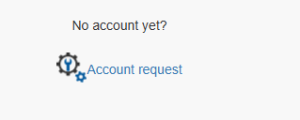
A new screen will open:
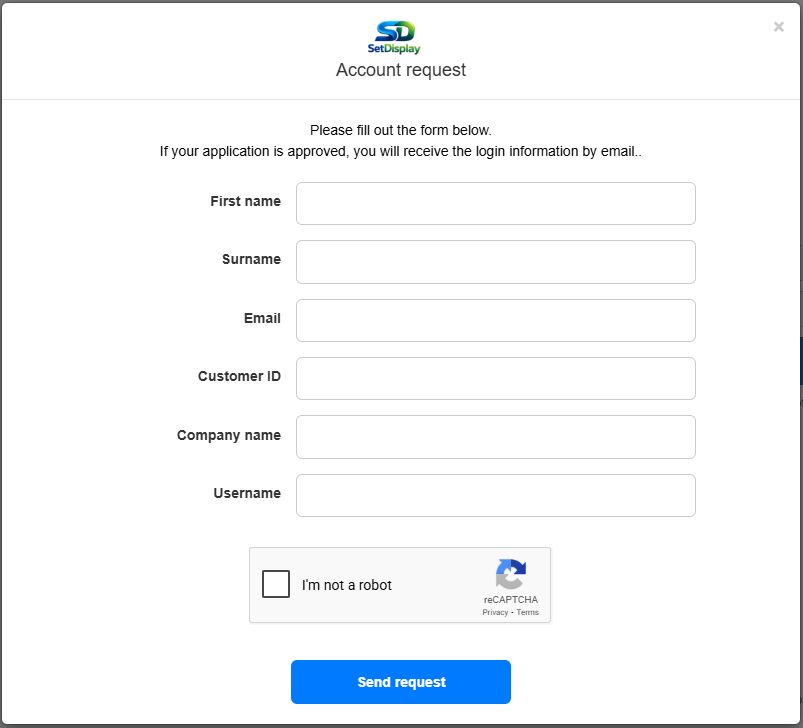
Enter the requested information:
- First name
- Last name
- E-mail address (this is the e-mail address that is also used to log in)
- Customer ID (the customer ID was provided upon delivery of the screen and includes a 6-digit number. Please note that an account cannot be created without the correct customer ID.
- Company name (as provided with the relevant customer ID)
- User name (this can be the same e-mail address or a user name of your own)
- Please check the reCaptcha (I'm not a robot).
Click on “Send request”.
A notification screen will now appear to confirm the request.
After sending the request, it can take up to 24 hours before the login details are provided. Please take this into account and therefore request an account in good time.
The login details are provided by e-mail from the e-mail address "systeem(at)display.nl" with the password and the user name provided in the request.

2-Factor Authentication:
In addition to logging in with a username and password, SetDisplay is secured with a 2-factor authentication that works in combination with Google Authenticator on a smartphone.
(Note: Microsoft Authenticator: If you already use the Microsoft Authenticator, for example, you can also use it for Setdisplay.nl, see additional information for use with the Microsoft Authenticator at the bottom of this article.)
With the smartphone (Google or Apple) Google Authenticator can be installed via the Appstore or the Playstore.


Install the Authenticator on the smartphone:

After installing Google Authenticator, the link (as shown in the email sent) can be opened and a QR code will be shown:

Scan this QR code using Google Authenticator and your smartphone's camera.
Google Authenticator will then recognize SetDisplay and display it on your smartphone's screen, including a 6-digit code.

This 6-digit code changes every few minutes and corresponds to the code you enter when logging in to setdisplay.
Note:
Scanning the QR code only needs to be done once. When logging in, you only need to use your username and password (which you can save on your PC so that they are loaded automatically if desired) and the 6-digit code that you can read via the Google Authenticator.
You can then log in to the portal via setdisplay.nl.
Microsoft Authenticator:
(Please note, this only applies if Microsoft Authenticator is already being used.)
If the Microsoft Authenticator is already used for other applications, it is possible to use it to log in to Setdisplay.nl. The procedure for one-time registration with the Microsoft Authenticator basically works as follows:
- Create a new account as above.
- An email will be sent with your login details and a link for the authenticator.
- Click on the link and a QR code will be displayed on the screen.
- Unlike Google Authenticator, depending on the version of Microsoft Authenticator, there may be no camera function in the application. If that is the case, you should NOT open Microsoft Authenticator but directly use the smartphone's camera.
- Scan the QR code with the camera and then click on the link shown.
- Then choose what this link can be opened with, the shortcut to Microsoft Authenticor will appear on the screen, select it and Setdisplay will be added to Microsoft Authenticator with this account.