Media
The “Media” tab concerns the library of images uploaded to Setdisplay
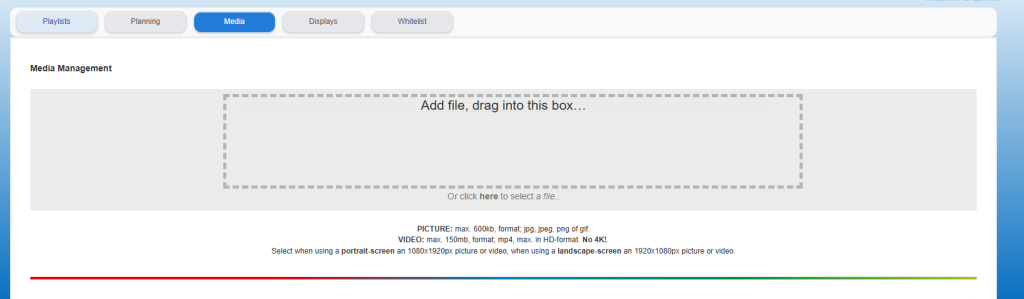
When opening Media for the first time, it does not include any images and a blank screen is shown. (see image above)
+++++++++++++++++++
Preparations
Placing an image is simple, but does require some preparation.
The image that is to be displayed on the screen must be prepared for the screen in question, that is, in the case of a landscape screen, that the image is adjusted to this, or this must be a landscape image, preferably in a resolution of 1920 x 1080px. In the case of a portrait screen, the image must of course also be prepared in this portrait position and then in the preferred resolution of 1080 x 1920px.
The advice is to keep the file size as small as possible. This will ensure a faster and smoother display on the screen. By default, the upload for images is limited to a file size of 550kb. (For videos, if this option is activated for you, this is a maximum of 500 mb.)
Image(s) in the following file formats are permitted:
- .jpg
- .png
- .gif
+++++++++++++++++++
Once the image has been prepared in the correct position and resolution, it can be transferred (uploaded) to the media library.
Then drag the image in question to the box as shown in the Media tab. After dragging, the image can be "released" after which the image is immediately uploaded to Setdisplay. The image is then visible as a thumbnail in the lower part of the screen.
In addition to dragging, it is also possible to click on "Or click here to choose a file" after which the file in question can be selected on the local PC and will then also be transferred to Setdisplay.
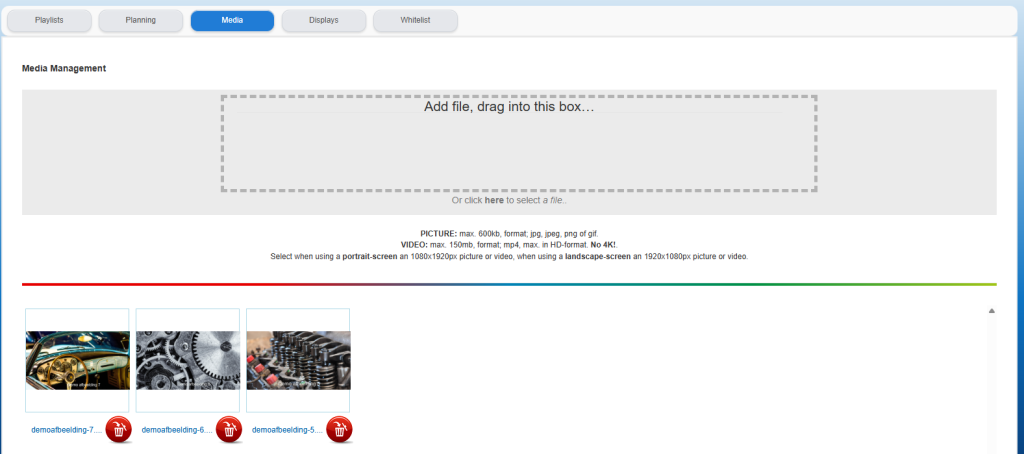
Simply repeat the above process to start using multiple images in the playlists.