
Browser buttons
When it comes to a Touchscreen, the screen generally has additional menu buttons (browser buttons) at the top. These menu buttons can be programmed and shown on the display as desired.
Touchscreen-specific settings such as these menu buttons are accessed via the Display tab and then via the gear symbol  under the Setup column.
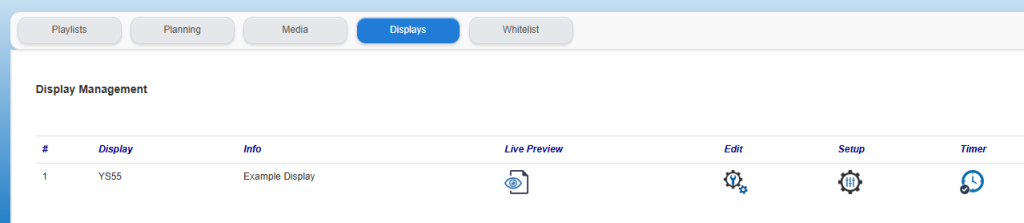
A pop-up screen with settings will open, the so-called Browser settings:
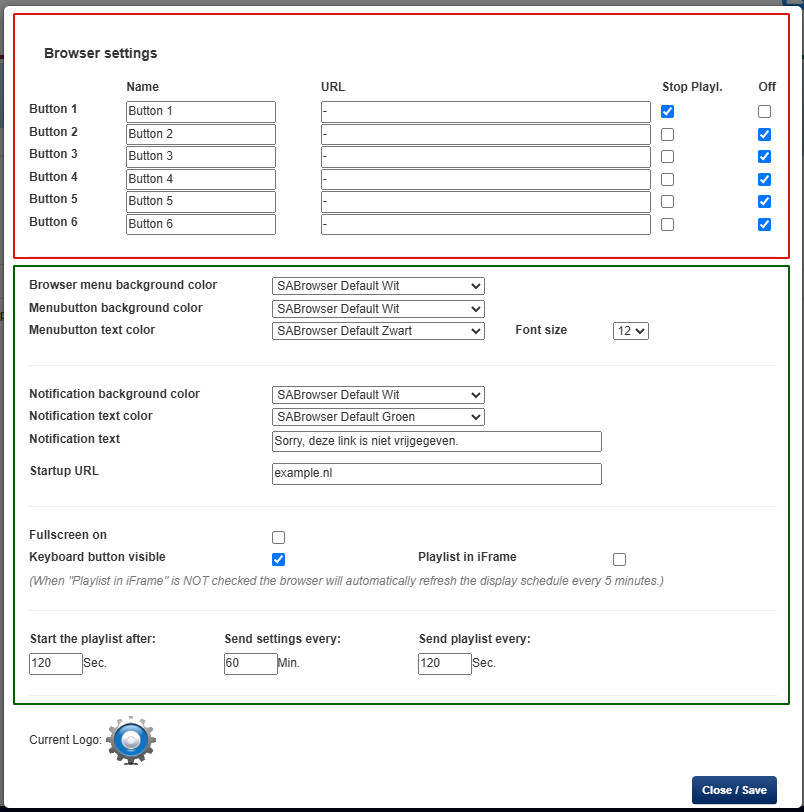
The “Browser settings” consists of two parts:
- The visible settings on the display, i.e. the menu buttons. This concerns the RED-bordered part in the image above.
- Technical settings to adapt the display as much as possible to personal preferences and/or usage conditions. This concerns the GREEN-bordered part in the image above.
In this article we limit ourselves to the RED bordered part, which concerns the menu buttons that are visible at the top of the Touchscreen. For the technical settings, the GREEN bordered part we refer to the article about the Technical settings.
MENU BUTTONS:
The presentation display generally comes with a number of menu buttons set up.
These menu buttons can be adjusted at any time.
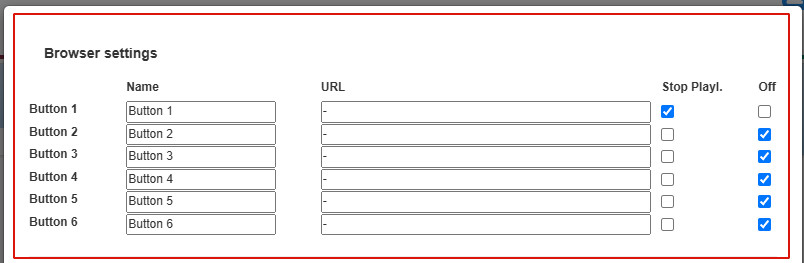
In the image above shows the settings for the buttons.
The display basically includes a maximum of 6 menu buttons, but of course not all of them need to be used.
Set up menu button:
Setting up a button involves 4 parts:
- Name
- URL
- Stop Playlist
- Off
To fill in a button, we follow Button 1 as an example:
Name:
The name of the button itself as it appears on the presentation display.
URL:
This is the full website address to which the menu button should refer (this may be without https://). For example “setdisplay.nl”.
Stop Playlist:
The software is set up so that when the display is no longer used by a visitor, a playlist is automatically started (this playlist includes the playlist as created under the Playlists tab).
However, it may be undesirable that the playlist starts after using a certain menu button. By checking this box, the playlist will be temporarily blocked and the playlist will not start after clicking this menu button. By default, this option is disabled (not checked).
Off:
When only a limited number of menu buttons are used, the remaining buttons can be chosen not to be displayed. By checking this box, the button is disabled. In the example shown above, only 3 of the 6 buttons are used, and the remaining buttons are disabled.
Confirm the setting you just made with the "Close/Save" button.