Time Schedule Display
For both a Touchscreen and a No Touchscreen, it is possible to time schedule the display "on/off "(visuals/black) as desired via Display Switch.
From the Displays tab and the Timer column, the option for scheduling the display can be selected via the icon  .
.
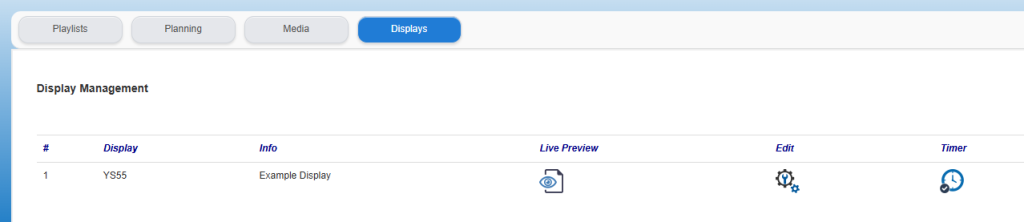
After clicking the clock icon, the Time Schedule Display tab opens:
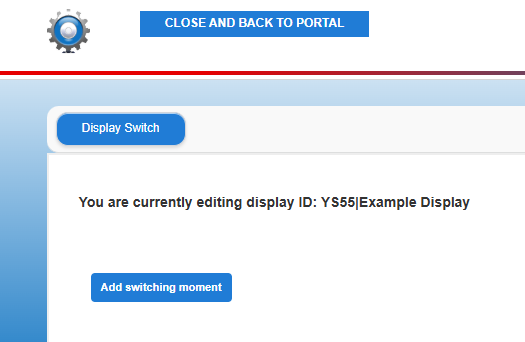
When first used, there is no switching moment present (the display in question also has no display at that time).
Via "Add switching moment" a row is added with which the first switching moments can be set.
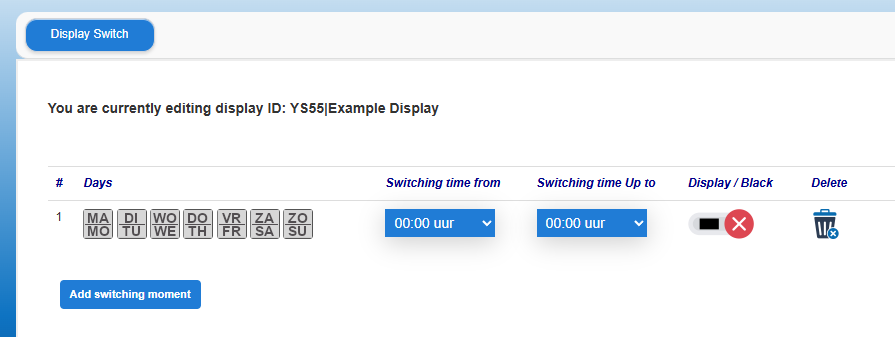
The opened screen shows in sequence:
- The days of the week, by selecting the relevant day it will then turn blue to indicate that it has been selected.
- The Switching time From, here the time is selected from the moment the display should start displaying.
- The Switching time Up to, here the time is selected at which the display stops displaying.
- Display/Black, to be used for switching the display (on) in line with the selected times. If the display needs to be temporarily switched off despite the time setting, no new times need to be set, but it is sufficient to switch this switch to "Black".
- Delete, via the trash can icon the relevant line can be deleted. Please note, if no switching times have been set the screen will be switched to black.
Note: If there are multiple days with the same times, these can be set in one go in the same line.
TO ILLUSTRATE THE VARIOUS POSSIBILITIES, HERE ARE A NUMBER OF EXAMPLES:
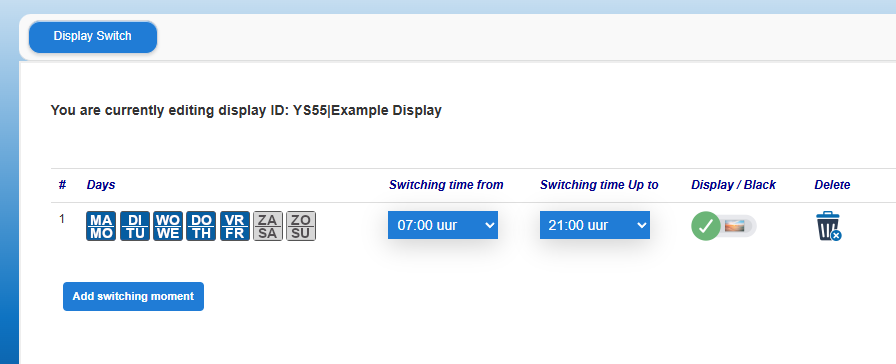
Example of switching on multiple days at the same times:
(Monday to Friday from 07:00 to 21:00 display image)
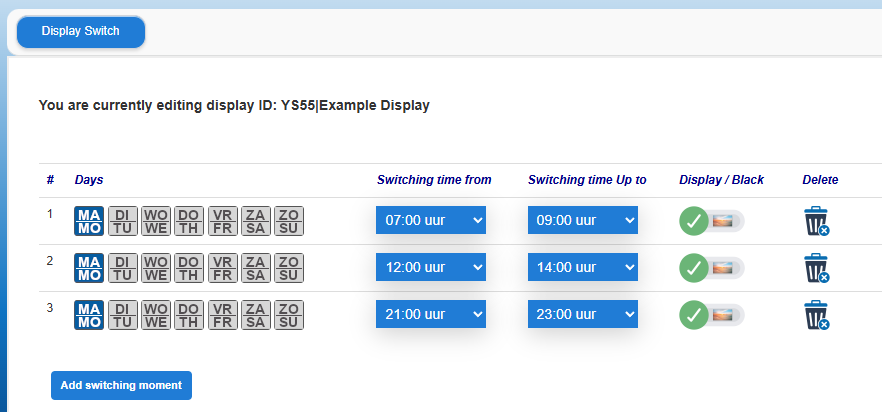
Example of multiple switchings for 1 day:
(Monday from 07:00 to 09:00 and from 12:00 to 14:00 and from 21:00 to 23:00 display on)
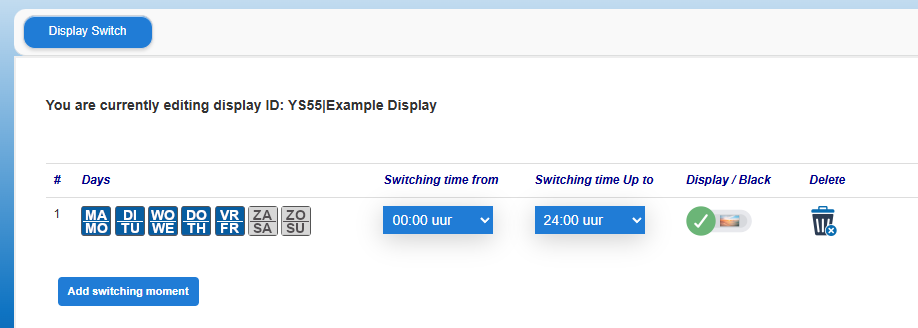
Example screen continuously display on over multiple days:
(On from Monday 0:00 to Friday night 24:00. The screen is turned black on Saturday and Sunday and turns on to display again on Monday night at 0:00.)