Content – Template
Setdisplay offers the possibility to display texts and/or images via a standard template or templates specifically created for you.
These templates also make it possible to welcome visitors (personally) or to show any other text on the display.
The system will basically use a standard (welcome) template for this. If there is a need for one or more personalized templates, this is possible; these must be created separately and customer-specifically. Please contact your contact person for this.
Placing a (welcome) text is done via an input screen where multiple lines are displayed. Please note that not all lines are always in use in the template. Therefore, after entering a text, check whether this gives the desired end result.
To place a text message via a template, use the light gray "Design" icon: this will change color
  after clicking to confirm.
A new field will appears under the heading "Template", make a choice from one of the available templates. By default, there are 2 templates available here, a welcome template for a horizontal (landscape) screen and a welcome template for a vertical (portrait) screen.

After making the selection (field: Select), the “Edit” symbol  will appear under the heading “Content / Text” with which the desired text for the selected template can be entered.

After clicking on "Edit" a second screen opens, the input screen and the desired texts, for example to welcome one or more visitors, can be entered.
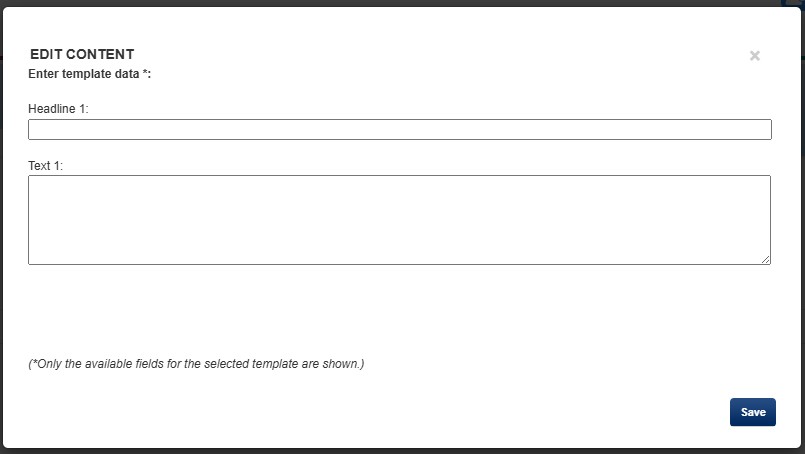
The image above shows all input fields, depending on the chosen template, fewer and specific input fields can be shown. After entering the desired texts, the field can be left by clicking "Save".
After returning to the "Playlists" tab, you will see that (immediately after selecting the desired template) next to the edit symbol, the symbol for "no image selected"  has also appeared under the headings Img. 1. to Img. 4. This gives you the option of placing an image in the template. Depending of course on the available and selected template, none up to a maximum of 4 symbols will be shown.
Click on the icon to then select a suitable image (for example, the correct dimensions related to the chosen template) from the media library.
In order to check whether the texts are correct and whether a different template should be selected, you can click on the icon for an "Impression" (example) . A second tab will open in the browser and a preview or example of the selected template with the entered text and/or images will be displayed. Please note that the display of this may not entirely correspond to the final display on the presentation screen. This is because the example is shown in the active browser and there may even be a distinction between portrait and landscape screens. The example is therefore only intended to be able to check whether the correct template, texts and/or images have been selected.
Then enter the duration for displaying the text/template.
The duration can be entered by directly entering the number of seconds or by clicking on the arrows behind the number until the desired number of seconds is reached.
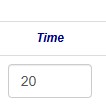
Once the duration has been changed from the default "0" to, for example, "20" seconds, the rule is activated and the play rule will become visible on the (presentation) display.
A second (or subsequent) play rule can be added using the "Add playline" button.
In addition, the existing play rule can always be adjusted (via the edit symbol) or, if desired, deleted as a whole rule using the trash can symbol.