
Content – Video
In addition to the content icons for (Welcome) Text, Website and Image, a fourth column with a video symbol is also visible in the playlist.

When you see this symbol with the text "Optie" in it, this function is not released for you. Of course, it is possible to activate this option for you, ask your supplier.
VIDEO FUNCTION AVAILABLE:
When the Video option is enabled a default light gray icon will be displayed similar to the icons for Text, Website and Image.

In order to include a video in the playlist, it is important that one or more videos are placed in the media library first. Uploading one or more videos is the same as uploading a regular image, for example, and is done in the media library; this is described in more detail in the Media article.
If there is a new playlist, the video content can be placed immediately. If there is an existing playlist (for example because a text line has already been created, see also (Content - Template)), an additional playback line can be added via the “Add play line” button.
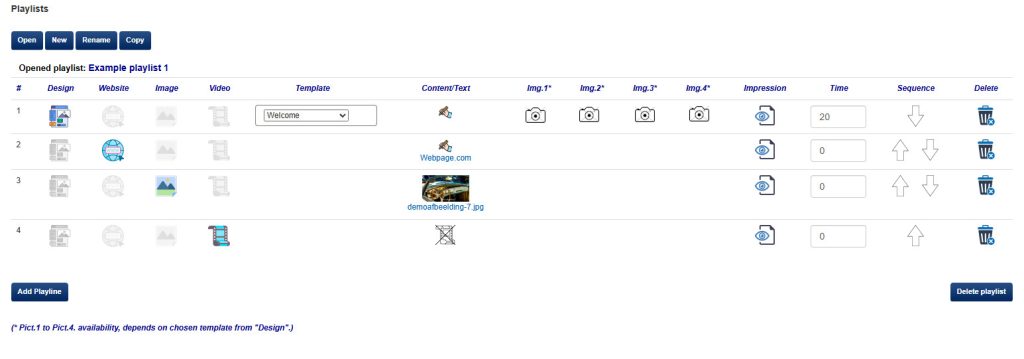
In the example above, a fourth line has been created (#4).
To place a video or film as content, use the light gray film icon:  this will change color
  after clicking to confirm.
In the next column, under the heading "Content", the content itself can be placed via the "video" icon  .
.
A second screen will open showing (as thumbnails) the videos uploaded via the “Media” tab.
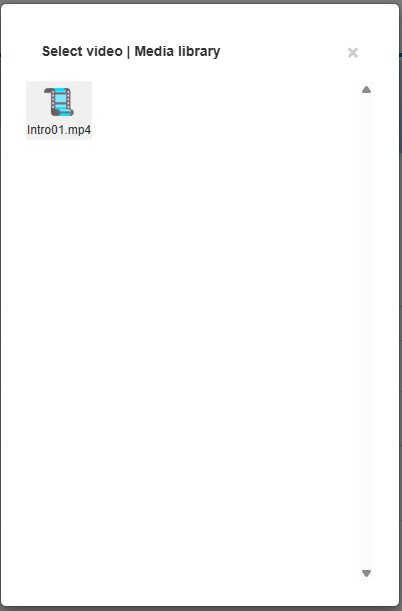
Click on the desired video and the playlist will be displayed again. The selected video will be displayed as a thumbnail in the line with the name of the file below.

Adjust the duration of the line so that the line is shown with the desired time. (For details about the duration, see also Content - Template).
Change order:
Now that there is a fourth line in the above example, one or more arrows are also automatically shown.
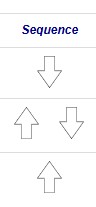 The order of the lines can be changed using the arrow(s).
Replacing video:
At any time, the selected video can be replaced by another video from the media library. To do this, click on the thumbnail in the respective playline and the media library will open to select the correct or another video. The other settings remain unchanged.