
Browser technical
When it comes to a Touchscreen, the screen generally has additional menu buttons (browser buttons) at the top. These menu buttons can be programmed and shown on the display as desired.
Touchscreen-specific settings such as these menu buttons are accessed via the Display tab and then via the gear symbol  under the Setup column.
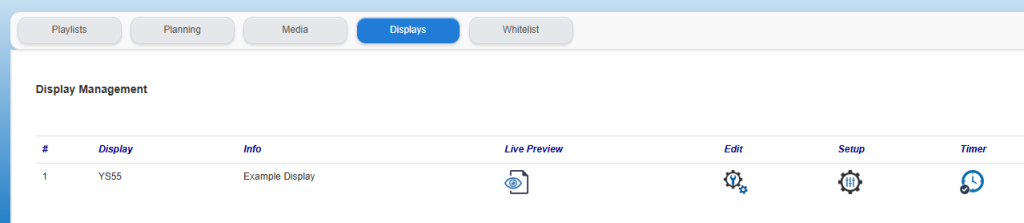
A pop-up screen with settings will open, the so-called Browser settings:
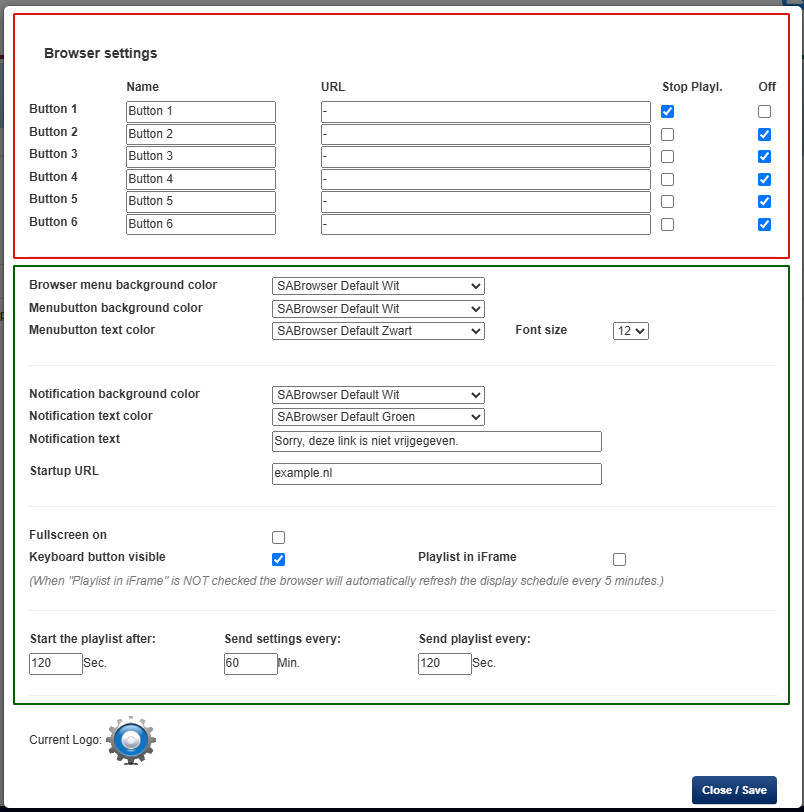
The “Browser settings” consists of two parts:
- The visible settings on the display, i.e. the menu buttons. This concerns the RED-bordered part in the image above.
- Technical settings to adapt the display as much as possible to personal preferences and/or usage conditions. This concerns the GREEN-bordered part in the image above.
In this article we limit ourselves to the GREEN bordered part, which concerns the technical settings of the Touchscreen. For the Browser Buttons, the RED bordered part we refer to the article about the Browser Buttons.
TECHNICAL SETTINGS:
These so-called technical settings allow you to further customize the presentation of the display to your own preferences.
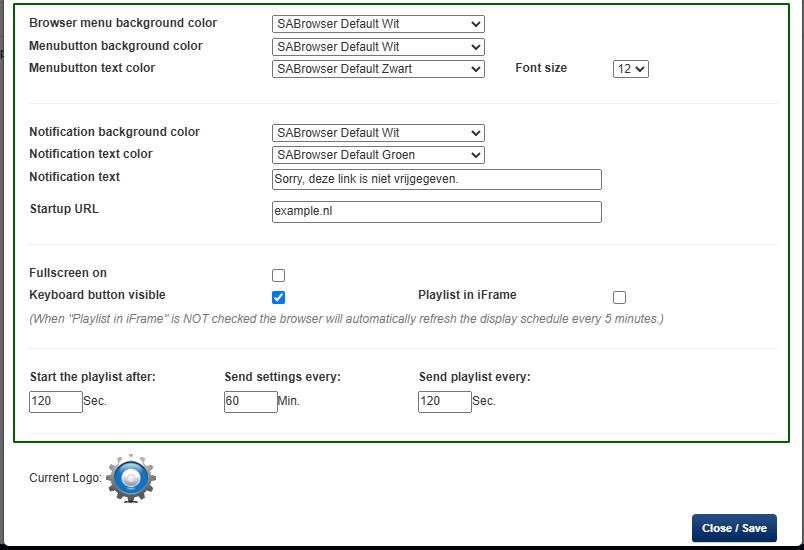
DETAILS SETTINGS:
Browser menu background color:
This determines the background color of the top bar in the presentation screen. This top bar contains the menu buttons, logos, keyboard icons, etc. By default, the background color is set to “SABrowser Default White”, but this can be set to your own preference and therefore color. Please note, we recommend testing this thoroughly with the display in question to ensure readability.
Menubutton background color:
This determines the background color of the border around the menu button itself. By default, the background color is set to “SABrowser Default White”.
Menubutton text color:
This determines the color of the text in the menu button. By default, the text color is set to “SABrowser Default Black”.
Font size:
This changes the size of the font in the menu button. For example, if there is a long title in the menu button, it may be desirable to display it slightly smaller so that it fits within the border of the button. By default, the font size is set to “12”.
Notification background color:
This is where the background color of the notification bar is set. By default, the background color is set to “SABrowser Default Green”. When a user of the touchscreen clicks on a certain link in a website which t the user is not allowed to go to, the screen will display a notification. (See also Whitelist ).
Notification text color:
The text shown in the above mentioned notification bar can be displayed in a different color. By default, this is set to “SABrowser Default White”.
Notification text:
This is the actual text that is shown in the relevant notification bar when the internet link is not available to the user. The default text is set to “Sorry this link is not available”.
Startup URL:
Basically, the same URL can be entered here as that placed under "Button 1", but if it is desired that the display shows a different URL upon startup, then the desired URL can be entered here. The display will show this URL until the playlist starts or a user activates one of the menu buttons on the display.
Please note that the startup URL will not be shown automatically later. If this is desired, then it should be placed under a button or included in the playlist.
Fullscreen on:
If the menu buttons are not used at all, you can choose to use the display fullscreen. By checking this box, the display will automatically switch to a Fullscreen display. Please note that things like the keyboard etc. will no longer be visible. By default, Fullscreen is “disabled” (not checked).
Keyboard button visible:
By default, a keyboard symbol is displayed at the top right of the presentation display. This allows a full-fledged keyboard to be shown on the display. This can be used, for example, to fill out a contact form. If the keyboard is not desired, its visibility can be disabled. By default, the Keyboard visibility is “enabled” (checked).
Playlist in iFrame:
This concerns a slightly more technical setting of the display. When a presentation display is not used for a certain period of time, a playlist is started. This playlist is shown to the visitors using a specific technique. The playlist is automatically refreshed every 5 minutes. In practice, this is more than sufficient.
In very specific situations, a faster refresh of the screen may be necessary. If desired, a presentation via a so-called iFrame can be chosen here. In general, the supplier of the screen will advise whether or not to use this. By default, this function of Playlist in iFrame is “disabled” (not checked).
Start playlist after …..sec. :
When a screen is no longer used by a visitor, the scheduled playlist will automatically be started. This determines the time of “inactive use of the screen” after which the playlist can be started. A commonly used setting is 300 seconds (5 minutes). Too short time setting may not give the user/visitor of the screen enough time to fully read the text displayed at that moment before the playlist is started. We recommend setting this to 300 seconds (=5 minutes) as standard.
Sent settings every…..Min. :
After changes made to, for example, the texts or URLs in the buttons or other technical changes made within the “Browser Settings” it is of course important that the presentation display receives this information. This field indicates the time interval at which the new settings are sent to the display. By default, this is set to 60 minutes.
Sent playlist every …..sec. :
Separate from the other settings, it is possible to send the playlist settings separately, i.e. more often than the general settings, to the display. The interval for updating the playlist with the display can be entered here. We recommend setting this to 600 seconds (=10 minutes) as standard.
Confirm the setting you just made with the "Close/Save" button.